Self-Order Kiosk
Let customers order and pay at a touch screen. This guide covers what the kiosk is, how to switch it on and pair a screen, how an order flows from the customer to your counter, and what to check when something looks wrong.
Overview
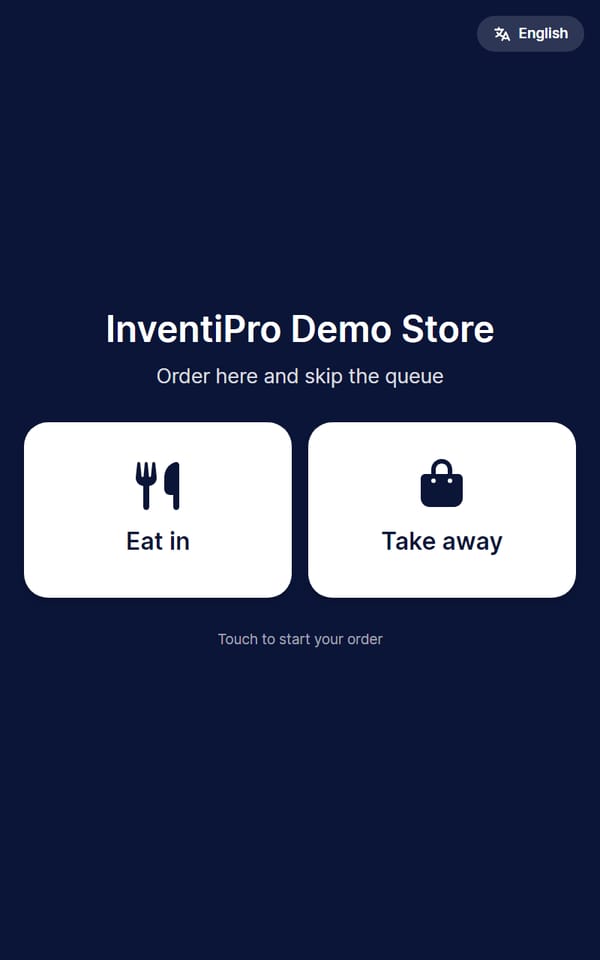
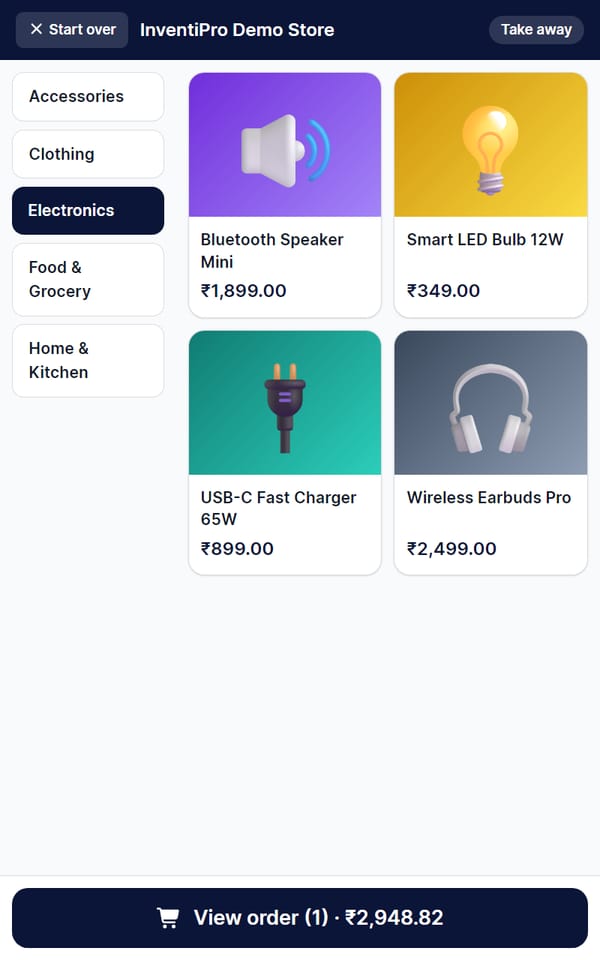
The kiosk is an add-on to InventiPro POS, not a separate system. It sells the products already in your catalogue, and every paid order becomes a normal invoice with stock and GST handled as usual.
Customer side
Counter side
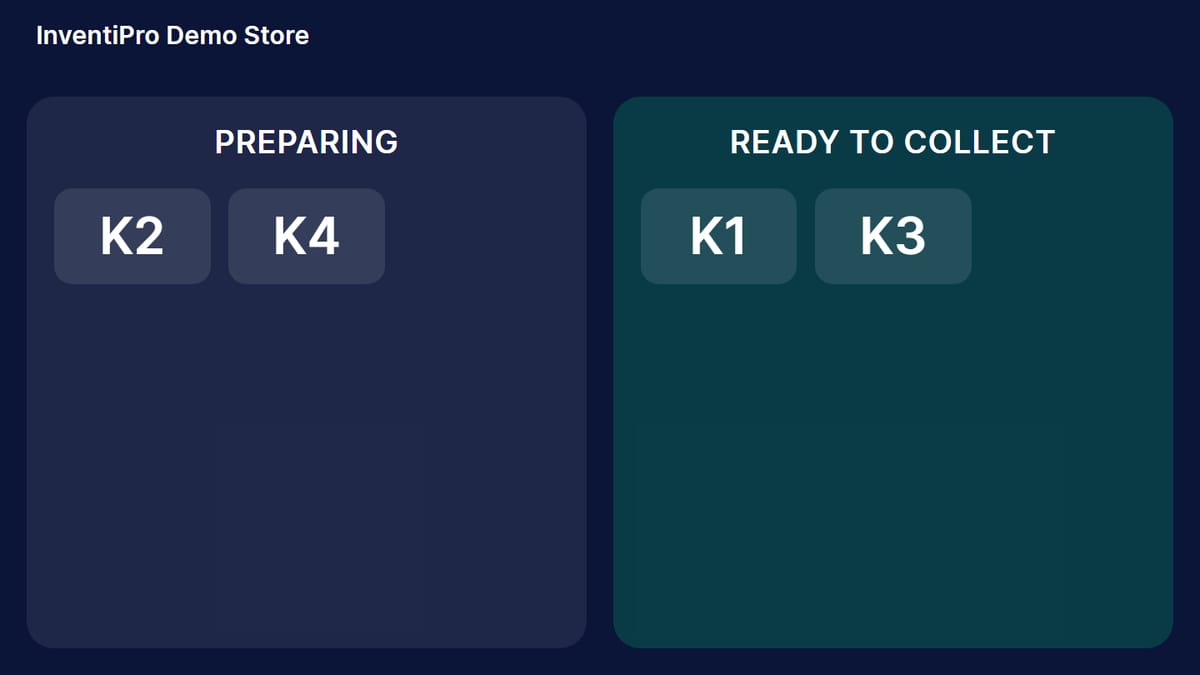
Now serving board
Getting the kiosk
There is no separate free trial. A shop gets kiosks in one of three ways, and they add up.
- Included in your plan. Some plans include a number of kiosks. It counts only while the plan is paid and current.
- Buy the add-on. Billed per kiosk device. The price is shown in your dashboard before you pay, and on the pricing page.
- Granted by InventiPro. Our team can switch it on for you — contact us.
Set it up
About 15 minutes the first time. Use a computer for the back office steps and the kiosk device for the last one.
- 1
Open the kiosk page
Sign in to InventiPro and open Self-Order Kiosk in the menu. It has an orders queue, your kiosks, settings and your plan. - 2
Choose what is on the kiosk
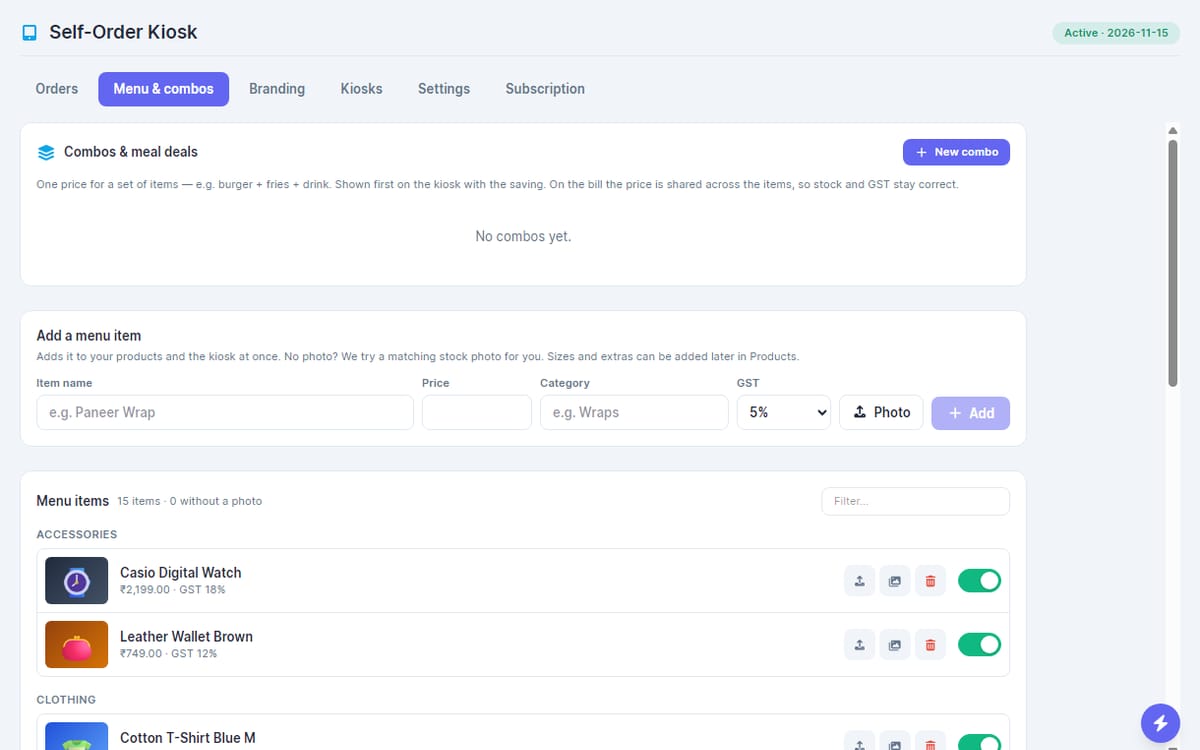
The kiosk shows your existing products by category, with photos, prices and sizes. Use the show/hide switch to keep any item off the kiosk. A product with sizes must be ordered with one. - 3
Build combos (optional)
Sell a set of items at one price. The bill still splits back into the individual items, so stock and GST stay correct. - 4
Add your branding
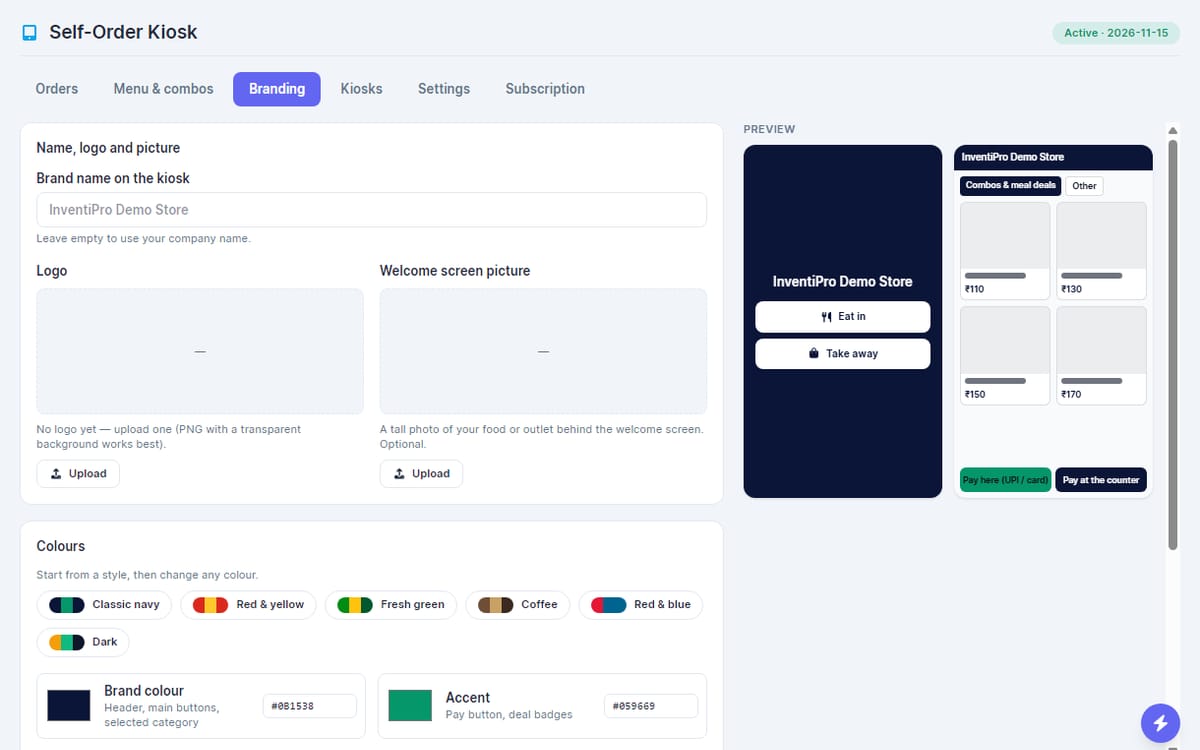
Set your name, logo, welcome picture and colours. A live preview shows the result before you save. - 5
Set up payment
To take payment at the screen, connect your own payment gateway in InventiPro first. Without one the kiosk offers pay at the counter only. - 6
Add a kiosk and get the code
On the Kiosks tab press add. You get a one-time 6-digit pairing code. - 7
Pair the screen
On the tablet or touch screen, open your InventiPro address followed by/kioskand type the code. That screen is now your kiosk. To make a TV a Now serving board, pair it the same way and choose the board role. - 8
Lock the device
Use the device's kiosk or screen-pinning mode so customers cannot leave the app. For silent receipt printing, start the browser with its kiosk-printing option.
How an order flows
- 1
Customer orders
They choose eat in or take away, pick items and review the cart. Totals are always recomputed from your catalogue on our side, so a tampered screen cannot change what is charged. - 2
Customer pays
At the screen through your gateway, or choose pay at the counter. If you ask for a mobile number it can be verified with an SMS code (a separate paid add-on); without it the kiosk takes the number on its keypad. - 3
Order reaches you only once it is paid
A gateway payment sends it to the kitchen automatically; for pay at the counter, your cashier marks it paid as cash, card or UPI first. - 4
Kitchen and handover
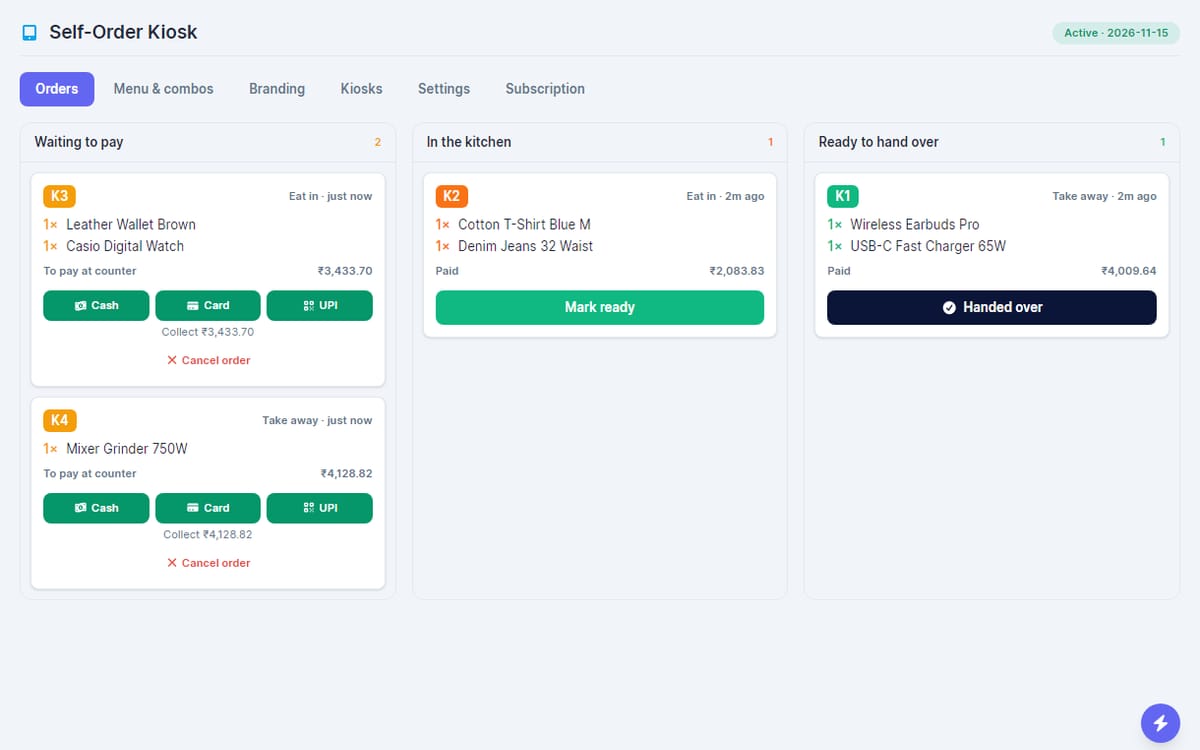
Orders move through waiting to pay, in the kitchen and ready. Marking one ready puts its number on the Now serving board. - 5
Receipt
The kiosk prints a receipt with the order number and items, and can reprint it. Printing can be switched off in settings.
Troubleshooting
FAQs
Do I need InventiPro POS to use the kiosk?
Yes. The kiosk is an add-on that sells the products already in your InventiPro catalogue. Each paid order becomes a normal invoice.
What hardware do I need?
A tablet or touch screen with a browser, ideally in portrait, and optionally a printer for receipts. Lock the device into kiosk or screen-pinning mode.
How do customers pay?
At the kiosk through the gateway you set up in InventiPro, or at the counter where your staff mark the order paid as cash, card or UPI.
What if the internet drops?
The kiosk needs an internet connection. When it cannot reach the server it asks customers to order at the counter.
Which languages can customers use?
English, Hindi, French, Spanish and Korean, switchable on the welcome screen.
Is there a free trial?
No separate trial. The kiosk is switched on when it is part of your plan, bought as an add-on, or granted by InventiPro.
Ready to cut the queue?
Read the product page for pricing, or talk to us and we will help you pair your first screen.